Zoom information
Table of Contents
1. Accessing office hours
You can drop-in in person or virtually at any time.
See the Canvas page for the office hours schedule, physical location, and Zoom link.
2. Accessing class during class time

Figure 1: Screenshot of the 'Start' button next to a posted class meeting in the Zoom Canvas interface.
- From Canvas, click on the Zoom link.
- From the default Upcoming Meetings tab, find the current class, and click the Start button.
3. Accessing archived class videos
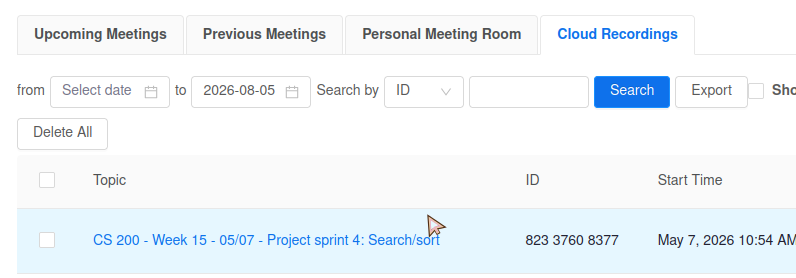
Figure 2: Screenshot of the Cloud Recordings tab in the Zoom view on Canvas.
- From Canvas, click on the Zoom link.
- Click on the Cloud Recordings tab.
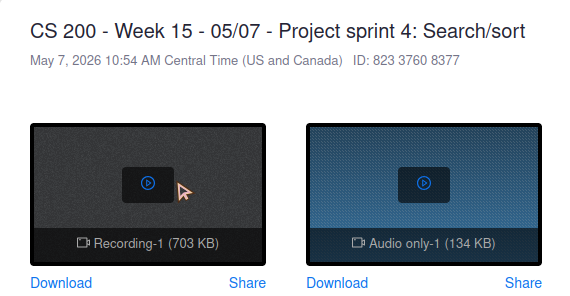
Figure 3: Screenshot of the video thumbnail for a cloud recording on the Zoom Canvas page.
Locate the video you wish to watch.
NOTE: CLICKING ON THE VIDEO AUTOMATICALLY COPIES THE PASSCODE!
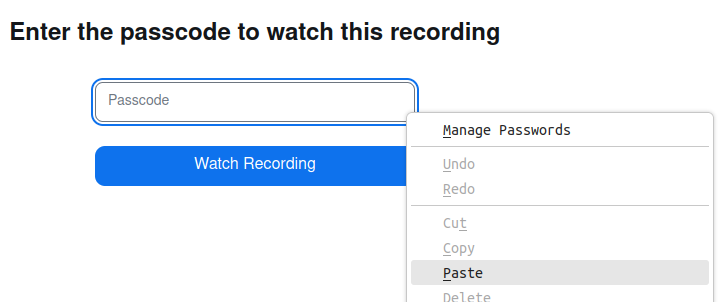
Figure 4: Screenshot of a right-click menu with the 'Paste' option highlighted, above the Zoom passcode textbox.
- Use PASTE (CTRL+V or right-click) to paste the passcode in, then click Watch Recording.